Tutorial 5. MagpieServer Configuration Explained
For this tutorial, please use the latest release of MagpieBridge.
The class ServerConfiguration allows user to customize the MagpieServer such as configuring the timing when MagpieServer should run registered analyses, which code actions should be attached to diagnostics reported by analyses, which LSP tracer MagpieServer should use etc. In this tutorial, you will learn about these configuration options.
The MagpieServer allows multiple ways when analysis should be triggered based on user actions in the clients (IDE/Editors). The user actions are based on what the language server protocol supports.
-
doAnalysisByOpen: analysis will be triggered when the user opens a source file for the first time in a project. This is by default true. To turn it off, use the following code.
    ServerConfiguration config = new ServerConfiguration();
    config.setDoAnalysisByOpen(false);
MagpieServer server = new MagpieServer(config);-
doAnalysisBySave: analysis will be triggered whenever the user saves a source file. This is by default true. Tu turn it off, use the following code.
    ServerConfiguration config = new ServerConfiguration();
    config.setDoAnalysisBySave(false);
MagpieServer server = new MagpieServer(config);-
doAnalysisByIdle: analysis will be triggered whenever the user is idle (doing nothing in the IDEs) for a given time period. This is by default false. The following code turns this option on and the analysis will be triggered when the user is idle for 5 minutes in the IDEs.
    ServerConfiguration config = new ServerConfiguration();
    config.setDoAnalysisByIdle(true, 5 * 60 * 1000);
MagpieServer server = new MagpieServer(config);Above you have learned that MagpieServer automatically runs the analysis based on user actions. However, sometimes we would like to allow the user to control when the analysis should be started. Even more, we would like to let the user to configure the analysis by herself. However, this cannot be achieved by only using the language server protocol, because it doesn't allow to change the look of clients (e.g. add a button, add a widget).
MagpieBridge decouples this desire from the language server protocol and leverages the fact that every computer should have a browser nowadays and generates a HMTL page which allows the user to configure and interact with the anaylsis. The workflow is explained in the following video.
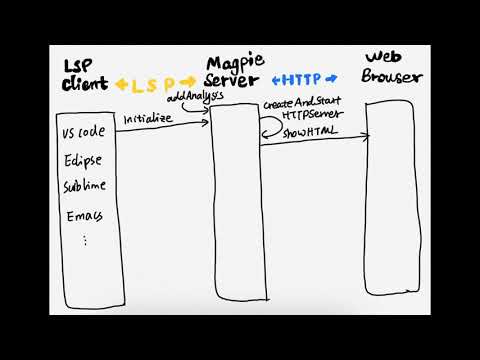
Let's continue the tutorial with a concrete example.
An example page for a Tool A is shown as follows. Tool A has 5 configuration options and it should allows user to configure them and control when Tool A should be ran.
 To achieve this goal, do the following steps:
- Configure MapgieServer to start the HTML page after initialization. The HTMP page is opened in your browser once the
MapgieServeris started. SinceRun Analysisaction is often used by analyses,MagpieBridgecan add such action for the analysis automatically by just turning on a server configuration.
 ServerConfiguration config = new ServerConfiguration();
 //turn off the automatic mechanism
 config.setDoAnalysisByOpen(false);
 config.setDoAnalysisBySave(false);

 //the 1st parameter allows the server to generate the page
 //the 2nd parameter allows the server to add button for the `Run Analysis` action
 config.setShowConfigurationPage(true,true);
MagpieServer server = new MagpieServer(config);- Define the configuration option and actions by overriding the methods
getConfigurationOptionsandgetConfiguredActionsof the interfaceAnalysis. Two classes are involved here:ConfigurationOptionandConfigurationAction. Currently two kinds ofConfigurationOptionare supported: checkbox (if the option value is boolean, e.g option 1) and text (if the option has an argument, e.g. option 3).ConfigurationActionis used to define a click event on an action button in the HTML page MagpieBridge generates and it contains a runnable task. Since in step 1 we already configuredMagpieServerto generateRun Analysisaction, we leave the list ofConfigurationActionempty. However, you can certainly define any task you would like to offer to the user.
TheMapgieServerautomatically generates the HTML page based on the values it gets from the implemented methodsgetConfigurationOptionsandgetConfiguredActions.
class ToolA implements ToolAnalysis{
//ToolAnalysis is the interface for integrating CLI tools with MagpieBridge and a sub-interface of Analysis.
//You can also implements the interface ServerAnalysis

@Override
public List<ConfigurationOption> getConfigurationOptions() {
  List<ConfigurationOption> options= new ArrayList<>();
  // set option 1 by default to true.
  ConfigurationOption o1 = new ConfigurationOption("option 1", OptionType.checkbox, "true");
  ConfigurationOption o2 = new ConfigurationOption("option 2", OptionType.checkbox);
  ConfigurationOption o4 = new ConfigurationOption("suboption 4", OptionType.checkbox);
  ConfigurationOption o5 = new ConfigurationOption("suboption 5", OptionType.checkbox);
  o2.addChild(o4);
  o2.addChild(o5);
  ConfigurationOption o3 = new ConfigurationOption("option 3", OptionType.text);
  options.add(o1);
  options.add(o2);
  options.add(o3);
  return options;
}

@Override
public List<ConfigurationAction> getConfiguredActions() {
    // We leave it empty, since MagpieServer adds Run Analysis button for us with the configuration in Step 1.
    return Collections.emptyList();
}

@Override
public void configure(List<ConfigurationOption> configuration) {
    for (ConfigurationOption o : configuration){
        // use the options to configure the analysis.
    }
}

...
}-
Once the user configures the options in the HTML page and clicks the
Submit Configurationbutton, the methodconfigure(List<ConfigurationOption> configuration)(see code above) will be called automatically by theMagpieServer. The parameterconfigurationcontains the options configured by the user in the HMTL page and should be used to configure the analysis. -
Sometimes, we would like to change the available configuration options depending on the user's selection. MagpieBridge also supports this. Different configuration options can be shown on the controller page based on the input given by the user in the previous controller page. The below example shows how we can change the available options on the controller page based on the user input. In the below example, initially, it shows the two options "option 1" and "option2". If the user selects option 2 then it configures the analysis based on option 2 and the configuration page remains the same. If the user selects option 1, then it clears the initial configuration options and shows the sub-option 1.1 and 1.2.
class ToolA implements ToolAnalysis{
//Global variable configuration options used to change dynamically
private List<ConfigurationOption> options= new ArrayList<>();

//Analysis constructor, that initialize the configuration options for the first time.
public ToolA() {
   initialConfiguration();
}

public void initialConfiguration() {
   // Set up the initial configuration option in the global variable options.
   // Call this method in the analysis constructor

   ConfigurationOption o1 = new ConfigurationOption("option 1", OptionType.checkbox, "true");
   ConfigurationOption o2 = new ConfigurationOption("option 2", OptionType.checkbox);
   options.add(o1);
   options.add(o2);
}

@Override
public List<ConfigurationOption> getConfigurationOptions() {
  // Returns the global variable options, initially set by the analysis constructor.
  return options;
}

//This method is used to change the variable options, if user selects the configration option 1 in the
//inital configuration page.
public void addOption1SubOptions() {
   // Clear the initial configuration options.
   options.clear();

   ConfigurationOption o11 = new ConfigurationOption("sub option 1.1", OptionType.checkbox, "true");
   ConfigurationOption o12 = new ConfigurationOption("sub option 1.2", OptionType.checkbox);
   options.add(o11);
   options.add(o12);
}

@Override
public void configure(List<ConfigurationOption> configuration) {
   for (ConfigurationOption o : configuration){
      if ("option 1".equals(configOption.getName())) {  //Check if the option is option 1
         if (configOption.getValueAsBoolean()) {        //Check iF user selected the option 1
            addOption1SubOptions();                     //If selected, then change and show sub option configuration page
         }
      } else if ("option 2".equals(configOption.getName())) {
         //Configure the analysis based on the option 2 and still shows the initial configuration option
      } else if ("sub option 1.1".equals(configOption.getName())) {
         //Configure the analysis based on the option 1.1 and still shows the sub option configuration page
      } else if ("sub option 1.2".equals(configOption.getName())) {
         //Configure the analysis based on the option 1.2 and still shows the sub option configuration page
      }
    }
}

...
}- Additional features to the checkbox:
If we would like more features to the checkbox like selecting all the children checkboxes when the parent checkbox is selected (for now MagpieBridge supports only this, in future more additional features to checkbox can be added), this can be achieved by using the class
CheckBox(a subclass ofConfigurationOption). In the below example, we allow the user to select the different types of security vulnerabilities to be searched while analyzing the program. Parent checkbox is "Select all types of vulnerabilities". This checkbox contains different types of vulnerabilities as its child checkbox. By selecting the parent "Select all types of vulnerabilities" checkbox, it selects all its children checkboxes and by de-selecting the parent checkbox, it de-selects all its children checkboxes. By default, theChildSelectablefeature is enabled in theCheckBoxclass. This feature can be disabled or enabled using the methodsetChildSelectable.
class ToolA implements ToolAnalysis{

@Override
public List<ConfigurationOption> getConfigurationOptions() {
  private List<ConfigurationOption> options= new ArrayList<>();

  CheckBox myOption = new CheckBox("Select all types of vulnerabilities", "true");
  myOption.setChildSelectable(true);    //Enables the ChildSelectable feature

  ConfigurationOption o1 = new ConfigurationOption("SQLi", OptionType.checkbox, "true");
  ConfigurationOption o2 = new ConfigurationOption("LDAP", OptionType.checkbox, "true");
  ConfigurationOption o3 = new ConfigurationOption("XPATHi", OptionType.checkbox, "true");
  ...

  myOption.addChild(o1);
  myOption.addChild(o2);
  myOption.addChild(o3);
  ...

  options.add(myOption);
  return options;
}

@Override
public void configure(List<ConfigurationOption> configuration) {
   for (ConfigurationOption o : configuration){
       //Configure the analysis based on the user input through configuration page.
    }
}

...
}- Alert the user with alert configuration option: Most of the cases, the user can provide the invalid user input. In this scenario, we would like to alert the user with some alert message to inform the user. In the below example, the user can provide the path to the Java files to analyze. If the user provides the invalid path then we need to alert the user stating that the given path is invalid. This can be achieved using the alert option type in Magpie that creates the alert box. Be careful with the alert, once we set the alert option, then in the next time remember to remove it otherwise, every time user submits, an alert box will be displayed.
class ToolA implements ToolAnalysis{
//Global variable configuration options used to change dynamically
private List<ConfigurationOption> options= new ArrayList<>();

//Analysis constructor, that initialize the configuration options for the first time.
public ToolA() {
  initialConfiguration();
}

public void initialConfiguration() {
  // Set up the initial configuration option in the global variable options.
  // Call this method in the analysis constructor

  options.clear();
  ConfigurationOption javaPathRequesting = new ConfigurationOption("Path of Java files for analysis", OptionType.text);
  options.add(javaPathRequesting);
}

@Override
public List<ConfigurationOption> getConfigurationOptions() {
  // Returns the global variable options, initially set by the analysis constructor.
  return options;
}

@Override
public void configure(List<ConfigurationOption> configuration) {
  for (ConfigurationOption o : configuration){
    if ("Path of Java files for analysis".equals(configOption.getName())) {
      String specPath = o.getValue();

        if (specPath == null || "".equals(specPath)) {   //Invalid user input
          initialConfigurationOption();    //Set the initial configuration, because if there are any alert set by the previous. we need to remove it.

          //Then add the alert configuration on top of the initial configuration options.
	  ConfigurationOption o1 = new ConfigurationOption(
          "Please enter the path for Java files for analysis!!!",
          OptionType.alert
	);
        options.add(o1);

      } else {
        //Set the initial configuration because we don't need alert now, otherwise, every time user submits, an alert will be displayed.
        initialConfigurationOption();

        //Configure the analysis with the valid input
        ...
    }
  }
}

...
}Please read Tutorial 8.
Please read Tutorial 4.