

A simple charting library for Android, supporting line-, bar-, scatter-, candlestick- and piecharts, as well as scaling, dragging, selecting and animations. Supporting Android 2.2 (API level 8) and upwards.
Remember: It's all about the looks.
The experimental branch might contain new features that are still buggy. It is recommended to be safe and only make use of the code on the master branch.
Forks, pull-requests or any other forms of contribution are always welcome.
If you would like to support this project's further development, the creator of this project or the continuous maintenance of this project, feel free to donate. Your donation is highly appreciated.
PayPal

Gittip


For a brief overview of the most important features, please download the PlayStore Demo MPAndroidChart Example.apk and try it out. The corresponding code for the demo-application is also included in this repository inside the MPChartExample folder.

If you are having questions or problems, feel free to contact me. Since I would very much like that other users of this library can also benefit from your question, I am asking you to contact me via e-mail only as a last option. Instead, you should:
- Make sure you are using the latest version of the library. Check the release-section.
- Search or open questions on stackoverflow with the
mpandroidcharttag - Search known issues for your problem (open and closed)
- Create new issues (please search known issues before, do not create duplicate issues)
You can let me know via e-mail that you have opened a stackoverflow question so that I might get to answering it more quickly. Thank you.
Core features:
- Scaling on both axes (with touch-gesture, axes separately or pinch-zoom)
- Dragging / Panning (with touch-gesture)
- Finger drawing (draw values into the chart with touch-gesture)
- Highlighting values (with customizeable popup-views)
- Multiple / Separate Axes
- Save chart to SD-Card (as image, or as .txt file)
- Predefined color templates
- Legends (generated automatically, customizeable)
- Customizeable Axes (both x- and y-axis)
- Animations (build up animations, on both x- and y-axis)
- Limit lines (providing additional information, maximums, ...)
- Fully customizeable (paints, typefaces, legends, colors, background, gestures, dashed lines, ...)
Chart types:
-
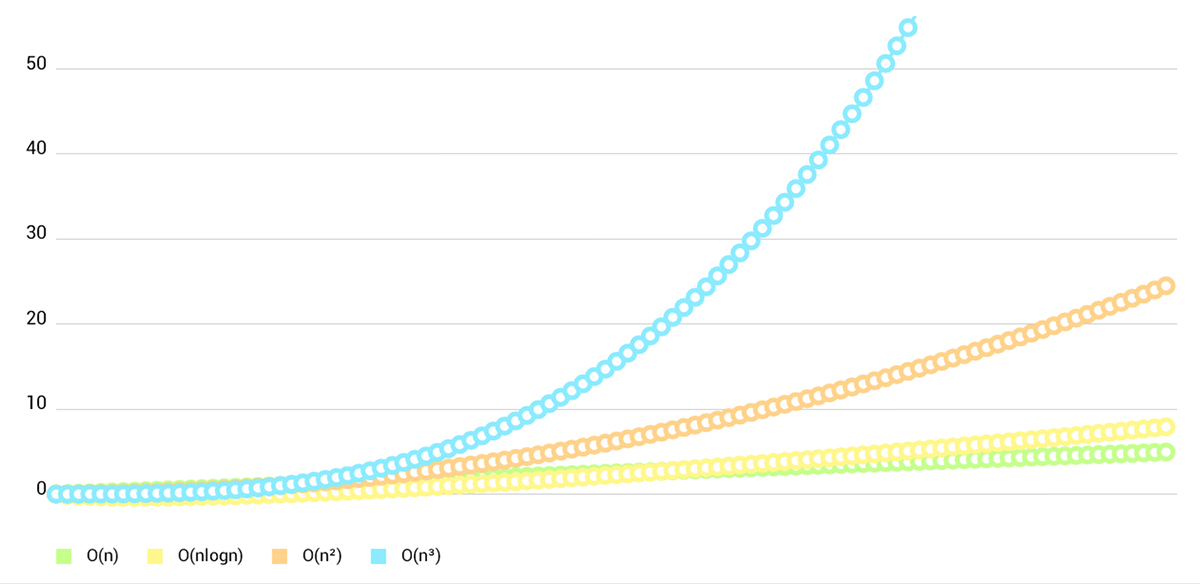
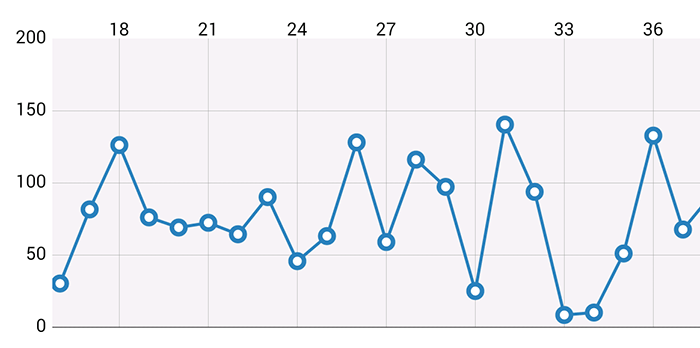
LineChart (with legend, simple design)
-
LineChart (with legend, simple design)
-
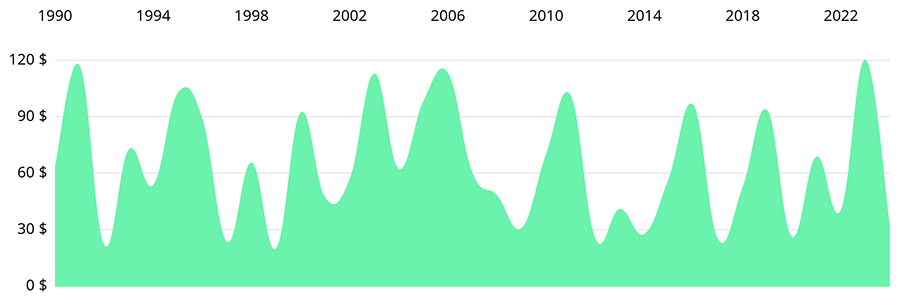
LineChart (cubic lines)
-
LineChart (single DataSet)
-
BarChart2D (with legend, simple design)


- BarChart2D (grouped DataSets)

- BarChart2D

- PieChart (with selection, ...)

- ScatterChart (with squares, triangles, circles, ... and more)

- CandleStickChart (for financial data)

- RadarChart (spider web chart)

In order to use the library, there are 4 options:
1. Gradle dependency
- Add the following to your
build.gradle:
repositories {
       maven { url "https://jitpack.io" }
}

dependencies {
       compile 'com.github.PhilJay:MPAndroidChart:v2.0.1'
}
2. Maven
- Add the following to your
pom.xml:
<repository>
      	<id>jitpack.io</id>
       <url>https://jitpack.io</url>
</repository>

<dependency>
       <groupId>com.github.PhilJay</groupId>
       <artifactId>MPAndroidChart</artifactId>
       <version>v2.0.1</version>
</dependency>
3. jar file only
- Download the latest .jar file from the releases section
- Copy the mpandroidchartlibrary-.jar file into the
libsfolder of your Android application project - Start using the library
4. clone whole repository
- Open your commandline-input and navigate to your desired destination folder (where you want to put the library)
- Use the command
git clone https://github.com/PhilJay/MPAndroidChart.gitto download the full MPAndroidChart repository to your computer (this includes the folder of the library project as well as the example project) - Import the library folder (
MPChartLib) into your Eclipse workspace - Add it as a reference to your project: referencing library projects in Eclipse
For getting started, rely on the "MPChartExample" folder and check out the examples in that project. The example project is also available in the Google PlayStore.
For a detailed documentation, please refer the Wiki.
Other:
saveToGallery(String title): Saves the current chart state as an image to the gallery.saveToPath(String title, String pathOnSD): Saves the current chart state as an image to the specified path.setScaleMinima(float x, float y): Sets the minimum scale factors for x- and y-axis. If set for example to 3f, the user will not be able to fully zoom out.centerViewPort(int xIndex, float val): This method makes it possible to aim the center of the view (what you can see from the chart) to a specific position inside the chart, described by the index on the x-axis and the value on the y-axis. This also works very well in combination with thesetScaleMinima(...)method.fitScreen(): Resets all zooming and dragging and makes the chart fit exactly it's bounds.
Displaying / styling legends:
By default, all chart types support legends and will automatically generate and draw a legend after setting data for the chart. If a legend should be drawn or not can be enabled/disabled using the
setDrawLegend(boolean enabled)
method.
The number of entries the automatically generated legend contains depends on the number of different colors (across all DataSet objects) as well as on the DataSet labels. The labels of the Legend depend on the labels set for the used DataSet objects in the chart. If no labels for the DataSet objects have been specified, the chart will automatically generate them. If multiple colors are used for one DataSet, those colors are grouped and only described by one label.
For customizing the Legend, use you can retreive the Legend object from the chart after setting data using the getLegend() method.
    // setting data...
    chart.setData(....);

    Legend l = chart.getLegend();
    l.setFormSize(10f); // set the size of the legend forms/shapes
    l.setForm(LegendForm.CIRCLE); // set what type of form/shape should be used
    l.setPosition(LegendPosition.BELOW_CHART_LEFT);
    l.setTypeface(...);
    l.setXEntrySpace(5f); // set the space between the legend entries on the x-axis
    l.setYEntrySpace(5f); // set the space between the legend entries on the y-axis
    // and many more...
Displaying / styling labels:
Labels (classes XLabel and YLabel) are used to describe the values of the chart on the x- and y-axis. While the x-axis labels display what is handed over to the ChartData object as an ArrayList<String> ("xVals"), the y-axis labels depend on the actual values that are set for the chart.
Labels can be enabled/disabled, using the methods:
setDrawXLabels(boolean enabled)setDrawYLabels(boolean enabled)
the chart provides.
In order to apply a different styling to the labels, the methods getYLabels() and getXLabels() can be used to acquire the labels object and modify it.
Example:
XLabels xl = mChart.getXLabels();
xl.setPosition(XLabelPosition.BOTTOM); // set the position
xl.setTypeface(...); // set a different font
xl.setTextSize(12f); // set the textsize
xl.setSpaceBetweenLabels(3); // set how many characters of space should be between the labels
//... and more

YLabels yl = mChart.getYLabels();
yl.setPosition(YLabelPosition.BOTH_SIDED); // set the position
yl.setTypeface(...); // set a different font
yl.setTextSize(12f); // set the textsize
yl.setLabelCount(6); // set how many label entries should be displayed
//... and more
Limit Lines:
Limit lines (class LimitLine) are (as the name might indicate) plain and simple lines that can be set for all Line-, Bar- and ScatterData objects. They can be used to provide additional information for the user.
As an example, your chart might display various blood pressure measurement results the user logged with an application. In order to inform the user that a systolic blood pressure of over 140 mmHg is considered to be a health risk, you could add a LimitLine at 140 to provide that information.
LineData ld = new LineData(...);

LimitLine ll = new LimitLine(140f);
ll.setLineColor(Color.RED);
ll.setLineWidth(4f);
// .. and more styling options

ld.addLimitLine(ll);
Dynamically adding data (real time):
For adding new data to the chart dynamically, there are various methods that allow to either add Entry objects to an existing DataSet or DataSet objects to an existing ChartData object.
Class DataSet (and all subclasses):
addEntry(Entry e): Adds the givenEntryobject to theDataSet.
Class ChartData (and all subclasses):
addEntry(Entry e, int dataSetIndex): Adds the givenEntryto theDataSetat the specified dataset index.addDataSet(DataSet d): Adds the givenDataSetobject to theChartDataobject.
In addition to that, there are also methods for removing data dynamically.
Class DataSet (and all subclasses):
public boolean removeEntry(Entry e): Removes the givenEntryobject from theDataSet. Returns true if successful.public boolean removeEntry(int xIndex): Removes theEntryat the given x-index from theDataSet. Returns true if successful.
Class ChartData (and all subclasses):
public boolean removeEntry(Entry e, int dataSetIndex): Removes the givenEntryobject from theDataSetwith the given dataset index. Returns true if successful.public boolean removeEntry(int xIndex, int dataSetIndex): Removes theEntryat the given x-index from theDataSetwith the given dataset index. Returns true if successful.public boolean removeDataSet(DataSet d): Removes the givenDataSetobject from theChartDataobject. Returns true if successful.public boolean removeDataSet(int index): Removes theDataSetat the given index from theChartDataobject. Returns true if successful.
Animations:
All chart types support animations that can be used to create / build up the chart in an awesome looking way. Three different kinds of animation methods exist that animate either both, or x- and y-axis separately:
animateX(int durationMillis): Animates the charts values on the horizontal axis, meaning that the chart will build up within the specified time from left to right.animateY(int durationMillis): Animates the charts values on the vertical axis, meaning that the chart will build up within the specified time from bottom to top.animateXY(int xDuration, int yDuration): Animates both horizontal and vertical axis, resulting in a left/right bottom/top build-up.
mChart.animateX(3000); // animate horizontal 3000 milliseconds
// or:
mChart.animateY(3000); // animate vertical 3000 milliseconds
// or:
mChart.animateXY(3000, 3000); // animate horizontal and vertical 3000 milliseconds
If animate(...) (of any kind) is called, no further calling of invalidate() is necessary to refresh the chart.
In order to support animations below Honeycomb, this library makes use of the awesome nineoldandroids library developed by Jake Wharton.
More documentation and example code coming soon.
This chart library is intended to fill the gap between popular charting libraries like "GraphView" or "achartengine".
Copyright 2014 Philipp Jahoda
Licensed under the Apache License, Version 2.0 (the "License"); you may not use this file except in compliance with the License. You may obtain a copy of the License at
http://www.apache.org/licenses/LICENSE-2.0
Unless required by applicable law or agreed to in writing, software distributed under the License is distributed on an "AS IS" BASIS, WITHOUT WARRANTIES OR CONDITIONS OF ANY KIND, either express or implied. See the License for the specific language governing permissions and limitations under the License.
Special thanks to mikegr and ph1lb4 for their contributions to this project.